Account & Billing

2.1 Subscription Plans

EasyPrompter offers four subscription tiers:

Free Plan

  • Cost: $0/month
  • Features:
    • View scripts (read-only)
    • Use teleprompter viewer
    • Limited offline access (read-only)
    • Cannot save or edit scripts
    • Cannot create collections
    • Cannot invite team members
    • Cannot create organizations

Creator Plan

  • Cost: $X/month or $Y/year (annual saves ~20%)
  • Features:
    • All Free features
    • Create and edit scripts
    • Create collections
    • Full offline mode
    • Keyboard shortcuts
    • Multi-device sync
    • Personal workspace only (no team features)

Studio Plan

  • Cost: $Z/month or $W/year per seat (annual saves ~20%)
  • Base fee: $39/month + per-seat pricing
  • Features:
    • All Creator features
    • Create organizations
    • Invite team members
    • Role-based access control
    • Organization collections
    • Team collaboration
    • Per-seat billing

Enterprise Plan

  • Cost: Custom pricing
  • Features:
    • All Studio features
    • SSO (SAML)
    • Advanced audit logs
    • Custom features
    • Dedicated support

2.2 Managing Your Subscription

Viewing Subscription Details

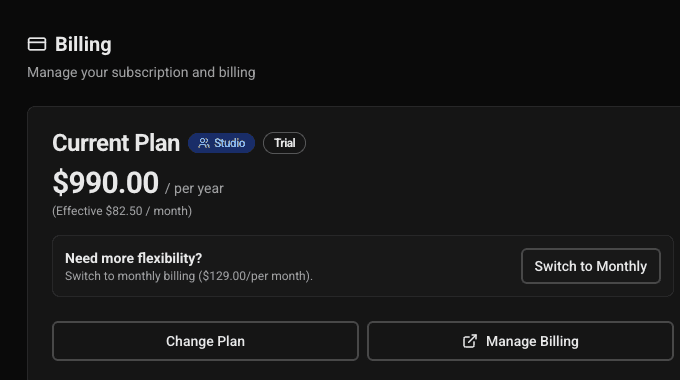
  1. Navigate to SettingsAccount
  2. View your current plan, billing interval, and subscription status
  3. See trial information (if applicable)

Upgrading Your Plan

  1. Go to SettingsAccount
  2. Click "Upgrade Plan" or "Change Plan"
  3. Select your new plan and billing interval
  4. You'll be redirected to Stripe checkout
  5. After payment, your plan updates immediately

Edge Cases:

  • Upgrading mid-billing period: Proration is handled automatically by Stripe
  • If payment fails during upgrade, you'll remain on your current plan
  • Upgrading from Free to Creator/Studio requires payment method

Downgrading Your Plan

  1. Go to SettingsAccount
  2. Click "Change Plan"
  3. Select a lower tier plan
  4. Your subscription will cancel at the end of the current billing period
  5. You'll retain access until the period ends

Edge Cases:

  • Downgrading from Studio to Creator: You'll lose organization features but keep personal workspace
  • If you're the only admin in a Studio organization, you cannot downgrade until you transfer ownership or delete the organization
  • Downgrading to Free: You'll lose ability to save/edit scripts immediately

Canceling Your Subscription

  1. Go to SettingsAccount
  2. Click "Cancel Subscription"
  3. Confirm cancellation
  4. Your subscription remains active until the end of the billing period
  5. You'll lose access when the period ends

Edge Cases:

  • Canceling Studio plan: Organization members lose access when subscription ends
  • You can resume a canceled subscription before the period ends
  • After cancellation period ends, you're moved to Free plan automatically

Managing Payment Methods

  • Payment methods are managed through Stripe Customer Portal
  • Click "Manage Billing" in Settings → Account
  • You'll be redirected to Stripe's secure portal

Edge Cases:

  • If your payment method expires, you'll receive email notifications
  • Failed payments: You'll have a grace period before access is suspended
  • Multiple payment methods: Stripe handles this in their portal

2.3 Trial Periods

Studio Trial

  • Duration: 14 days
  • Features: Full Studio access during trial
  • Billing: No charge until trial ends (unless you cancel)

Trial Management

  • Trial banner appears at top of screen showing days remaining
  • You can upgrade to paid plan anytime during trial
  • Trial cannot be extended
  • If you don't upgrade before trial ends, you're moved to Free plan

Edge Cases:

  • Trial starts immediately upon signup for Studio plan
  • If you cancel during trial, you lose access immediately (not at end of trial)
  • Trial is one-time per account (cannot restart trial)

2.4 Seat Management (Studio Plans)

Adding Seats

  1. Go to OrganizationTeam
  2. Click "Invite Member"
  3. If you're at seat limit, you'll be prompted to add seats
  4. Stripe automatically updates your subscription quantity
  5. Billing is prorated

Removing Seats

  1. Remove a team member from OrganizationTeam
  2. Seat count updates automatically
  3. Billing decreases at next billing cycle (not immediately prorated down)

Edge Cases:

  • Talent role members don't count toward seats (free)
  • Only Admin, Producer, and Editor roles count as billable seats
  • You cannot reduce seats below current active billable members
  • Seat changes take effect on next billing cycle